
Export Gerber files from Eagle
Exporting Gerber files from Autodesk Eagle is a key step before starting PCB 製造 和 PCB 組裝. Gerber files contain all the necessary data for fabricating your PCB, including copper layers, solder mask, silkscreen, and drill information.
Below is a step-by-step guide to help you correctly generate Gerber files for SMT 組裝 和生產。.
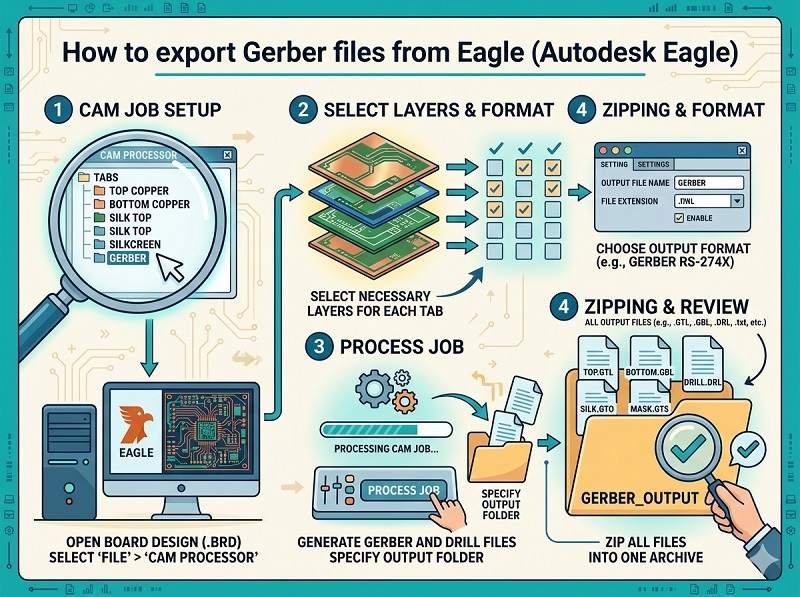
Open your PCB design
Start by opening your completed board file (.brd) in Autodesk Eagle. Make sure your design is finalized and all components are properly placed and routed.
It’s recommended to run a Design Rule Check (DRC) before exporting to ensure there are no layout errors that could affect PCB 組裝.
Open the CAM processor
In the top menu, go to
File → CAM Processor
The CAM Processor is the tool used to generate Gerber files for PCB 製造. It allows you to select layers and configure output settings.
Load a CAM job file
Eagle usually includes default CAM job files.
Click File → Open → Job, then select a standard job such as:
gerber.cam
This will automatically load predefined settings for common Gerber outputs, suitable for most PCB 組裝 要求。.
Configure Gerber layers
Ensure the correct layers are selected for export. Typical layers include:
- Top Copper (Top)
- Bottom Copper (Bottom)
- Solder Mask Top/Bottom
- Silkscreen Top/Bottom
- Board Outline (Dimension layer)
適用於 SMT 組裝, accurate solder mask and silkscreen layers are especially important.
Set output format
Make sure the output format is set correctly:
- Format: RS-274X (standard Gerber format)
- Units: mm or inch (match your design settings)
- Resolution: usually 2:5 or 2:6
These settings ensure compatibility with most PCB 製造 suppliers.
Generate Gerber files
Click the Process Job button.
Eagle will generate a set of Gerber files, typically including:
- .GTL (Top Layer)
- .GBL (Bottom Layer)
- .GTS / .GBS (Solder Mask)
- .GTO / .GBO (Silkscreen)
- .GKO or .GML (Board Outline)
These files are essential for both fabrication and PCB 組裝.
Export drill files
Gerber files do not include drill data, so you must export it separately.
Go to:
File → CAM Processor → Drill data (Excellon format)
This file contains hole sizes and locations, which are critical for PCB 製造.
Verify Gerber files
Before sending files to your manufacturer, always verify them using a Gerber viewer.
Check that:
- All layers are aligned correctly
- Board outline is accurate
- No missing pads or traces
- Text and markings appear properly
This step helps prevent costly errors in PCB 組裝.
Package files for submission
Finally, compress all Gerber and drill files into a single ZIP archive.
Include:
- Gerber 檔案
- Drill file
- Readme or notes (if needed)
You can now send this package to your PCB 製造 或 PCB 組裝 supplier for quotation and production.
總結
Exporting Gerber files from Autodesk Eagle is a straightforward process when using the CAM Processor with the correct settings. Proper file preparation ensures smooth SMT 組裝, reduces manufacturing errors, and speeds up your project timeline.
正在尋找可靠的 PCB 裝配解決方案?請點擊下方立即索取報價。.
我們提供專業的 PCB 裝配服務,包括 SMT、DIP 及完整的統包解決方案。.
✔ 提供 NDA ✔ 24 小時內快速報價 ✔ ISO 認證工廠 ✔ 一站式 PCB & PCBA 服務




 繁體中文
繁體中文  English
  Deutsch
  Français
  Português do Brasil
  Español
  日本語
日本語  Nederlands
  Italiano
  Русский
  한국어
한국어  العربية
  Svenska
  Polski
  Türkçe