
Export Gerber Files from KiCad
Exporting Gerber files from KiCad is an essential step to prepare your design for تصنيع ثنائي الفينيل متعدد الكلور و تجميع ثنائي الفينيل متعدد الكلور. These files allow manufacturers to accurately fabricate your board and ensure smooth تجميع SMT و تجميع ثنائي الفينيل متعدد الكلور.
Below is a step-by-step guide to exporting Gerber files from KiCad.
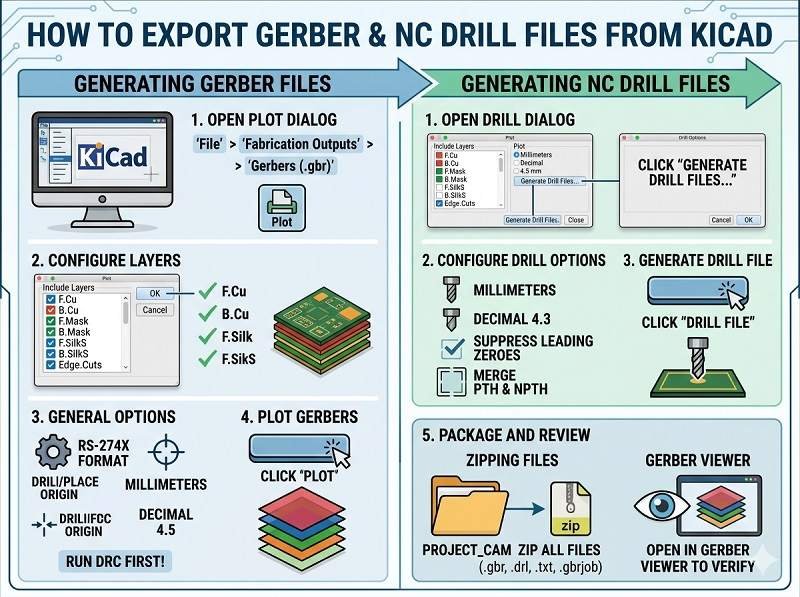
Step 1: Open Your PCB Layout
Open your PCB project in KiCad and launch the PCB Editor (PCBNew).
Before exporting, run a Design Rule Check (DRC) to ensure there are no layout errors that could affect PCB Manufacturing.
Step 2: Open Plot (Gerber) Settings
In the PCB Editor, go to:
File → Plot
This opens the Gerber export (plot) window where you configure all output settings.
Step 3: Configure General Settings
In the Plot window:
- Set Output format to Gerber
- اختر Units (millimeters recommended)
- Set Precision (e.g., 4.6 format)
- Select Use Protel filename extensions (commonly required by manufacturers)
These settings ensure compatibility with standard تصنيع ثنائي الفينيل متعدد الكلور العمليات.
Step 4: Select Layers to Export
Choose all necessary PCB layers.
Typical layers include:
- F.Cu (Top Copper)
- B.Cu (Bottom Copper)
- Inner layers (for multilayer boards)
- F.Mask (Top Solder Mask)
- B.Mask (Bottom Solder Mask)
- F.SilkS (Top Silkscreen)
- B.SilkS (Bottom Silkscreen)
- Edge.Cuts (Board Outline)
Selecting the correct layers is critical for accurate تجميع ثنائي الفينيل متعدد الكلور.
Step 5: Plot Gerber Files
Click the Plot button to generate Gerber files.
KiCad will export one file per selected layer into your chosen output directory.
Step 6: Generate Drill Files
Gerber files must be accompanied by drill data.
Click Generate Drill Files in the same window.
Configure:
- Drill units (match Gerber units)
- File format (Excellon)
Then click Generate Drill File.
This file defines hole sizes and positions for تصنيع ثنائي الفينيل متعدد الكلور.
Step 7: Verify Gerber Files
Always verify your Gerber files before sending them for تجميع ثنائي الفينيل متعدد الكلور.
Use KiCad’s built-in Gerber Viewer (GerbView) or a third-party viewer to check:
- Layer alignment
- Board outline accuracy
- Pad and via placement
- Solder mask openings
Verification helps prevent issues during تجميع SMT.
Step 8: Prepare Full Assembly Package
بالنسبة لـ تجميع ثنائي الفينيل متعدد الكلور, you should provide a complete set of files:
- ملفات جربر
- Drill files
- قائمة المواد (BOM)
- Pick and place (centroid) file
- رسومات التجميع
This ensures smooth coordination between PCB fabrication and assembly.
Common Mistakes to Avoid
- Forgetting the Edge.Cuts layer (board outline)
- Missing solder mask or silkscreen layers
- Using inconsistent units between files
- Not generating drill files
- Skipping file verification
Avoiding these mistakes helps ensure a successful PCB Manufacturing process.
الخاتمة
Exporting Gerber files from KiCad is a straightforward process when done correctly. By selecting the right layers, generating drill files, and verifying outputs, you can ensure accurate results in تصنيع ثنائي الفينيل متعدد الكلور, تجميع SMT, و تجميع ثنائي الفينيل متعدد الكلور.
A complete and correct file package reduces errors, shortens lead times, and guarantees high-quality PCB production.
يبدأ حل تجميع ثنائي الفينيل متعدد الكلور من هنا. انقر أدناه لطلب عرض أسعار.
نحن نوفر خدمات تجميع ثنائي الفينيل متعدد الكلور الاحترافية بما في ذلك SMT وDIP وحلول تسليم المفتاح الكاملة.
✔ إتاحة اتفاقية عدم الإفشاء ✔ عرض أسعار سريع في غضون 24 ساعة ✔ مصنع معتمد من ISO ✔ خدمة PCB و PCBA الشاملة




 العربية
  English
  Deutsch
  Français
  Português do Brasil
  Español
  日本語
日本語  Nederlands
  Italiano
  Русский
  한국어
한국어  Svenska
  Polski
  Türkçe
  繁體中文
繁體中文